Setting Up Microsoft Authenticator
To install Authenticator on your iOS device
Scan the QR code
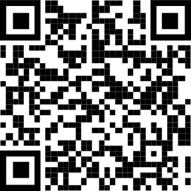
Or download and install Authenticator from the Apple app store.
To install Authenticator on your Android device
Scan the QR code
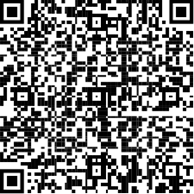
Or download and install Authenticator from the Google Play store.
Upon first install you will have to agree to Microsoft privacy policy and it's required permissions.
Add a work or school account using a QR code
To add an account by scanning a QR Code, do the following from your computer:
Sign in to the Security info page of your account at mysignins.microsoft.com/security-info.
Select  Add sign-in method.
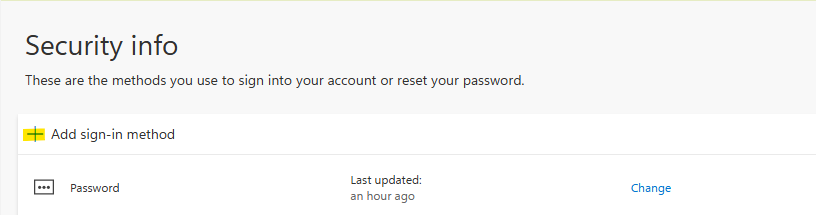
Choose Microsoft Authenticator from the dropdown and select Add.
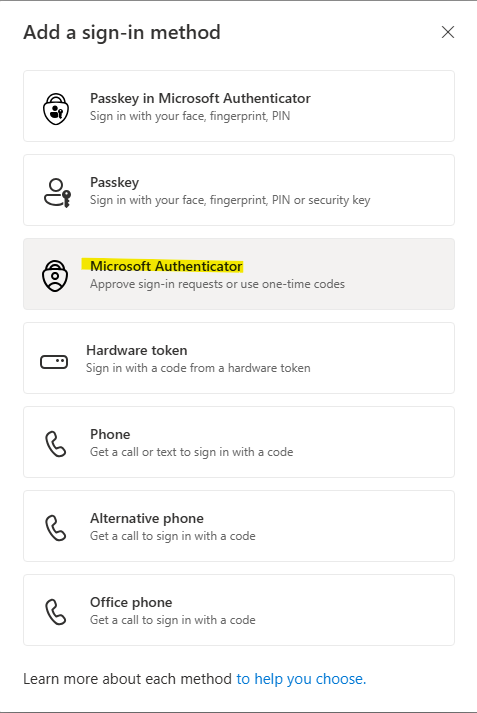
If you already have Authenticator installed on your phone, select Next to display a QR code.
Open Authenticator on your phone and select the plus icon and select Add account.
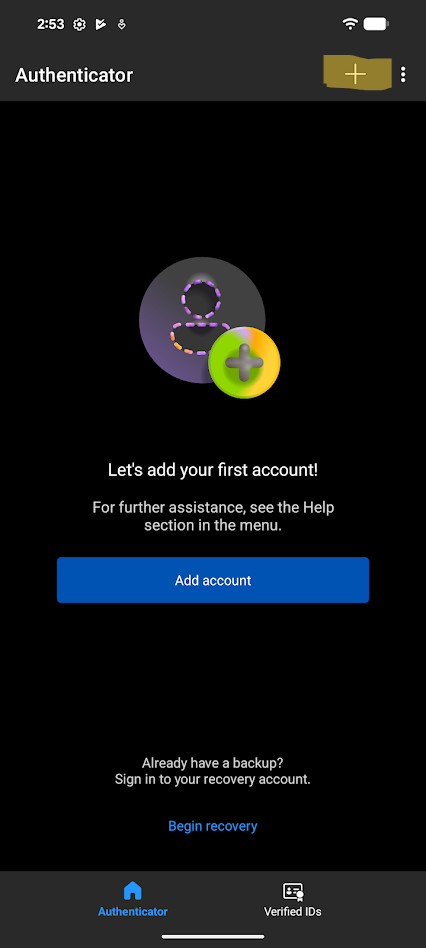
Select Work or school account then tap Scan a QR Code.
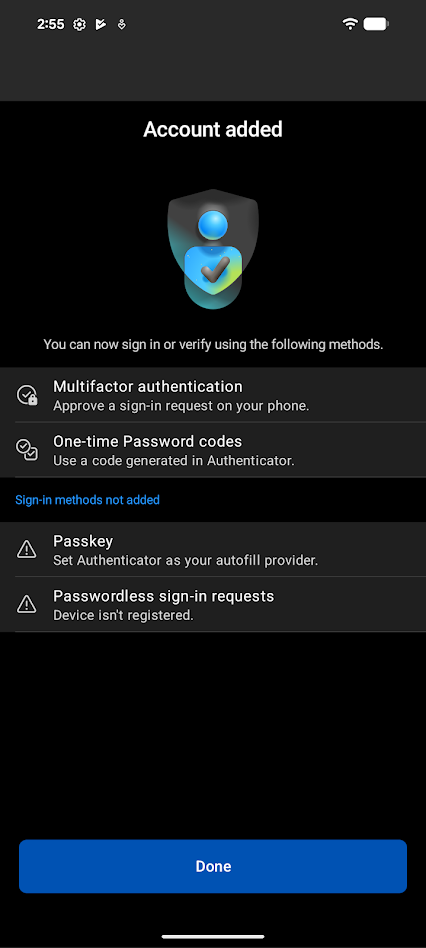
Your account is now added to Microsoft Authenticator
Add a work or school account using your credentials
To add an account by signing into your work or school account using your credentials:
Open Authenticator and select the plus icon on the top menu bar.
Tap Work or school account and select Sign in.
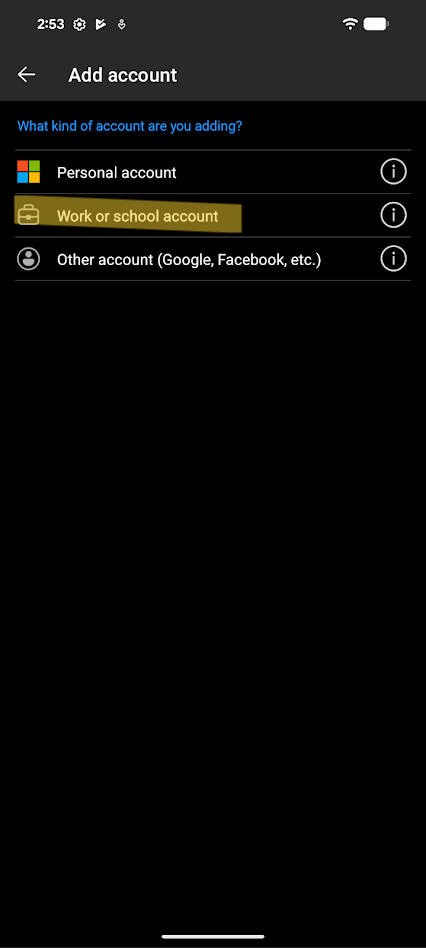
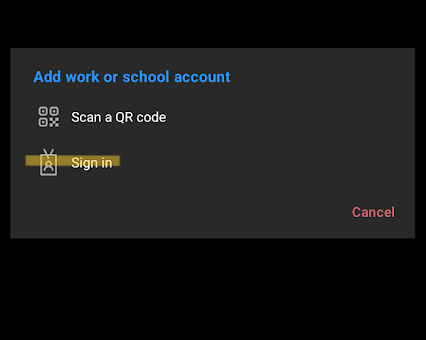
Enter your ****@qldbar.asn.au email address and password
When greeted with the Let's secure your account tap Continue
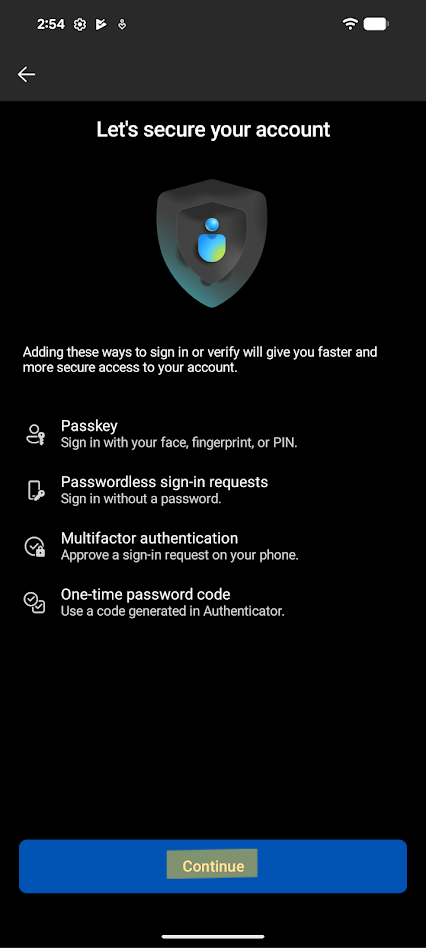
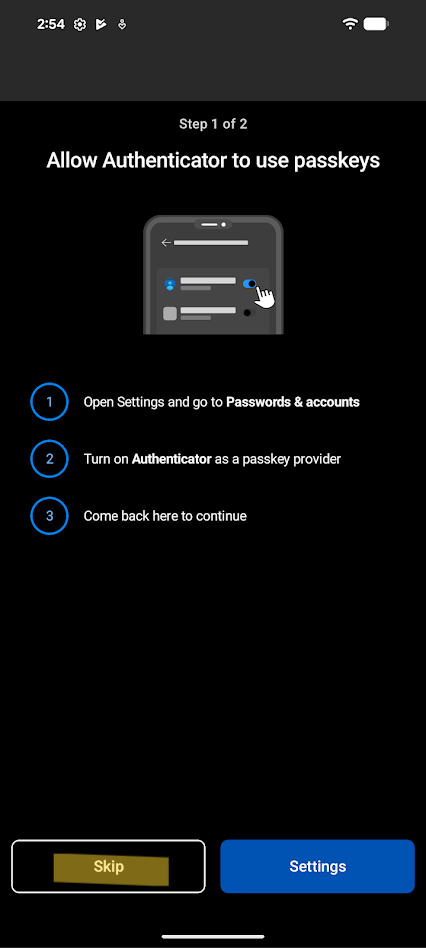
You should now have your QldBar account added to your authenticator app.